User Authentication
Before you can execute queries in SQL Studio, you must authenticate and establish a connection to your database service. The authentication method depends on how your administrator configured SQL Studio for each service.
Prerequisites
Before connecting to a database service in SQL Studio:
- SQL Studio (Query Runner) application must be installed by an administrator
- At least one database service must be configured for SQL Studio by your administrator
- You must have the necessary permissions to access the database service in Collate
- For Basic Authentication: You need your database credentials (service account, username/password, or private key)
Accessing SQL Studio
- Log in to Collate
- Click SQL Studio in the main navigation menu
- On first visit, you'll see a landing page with available services
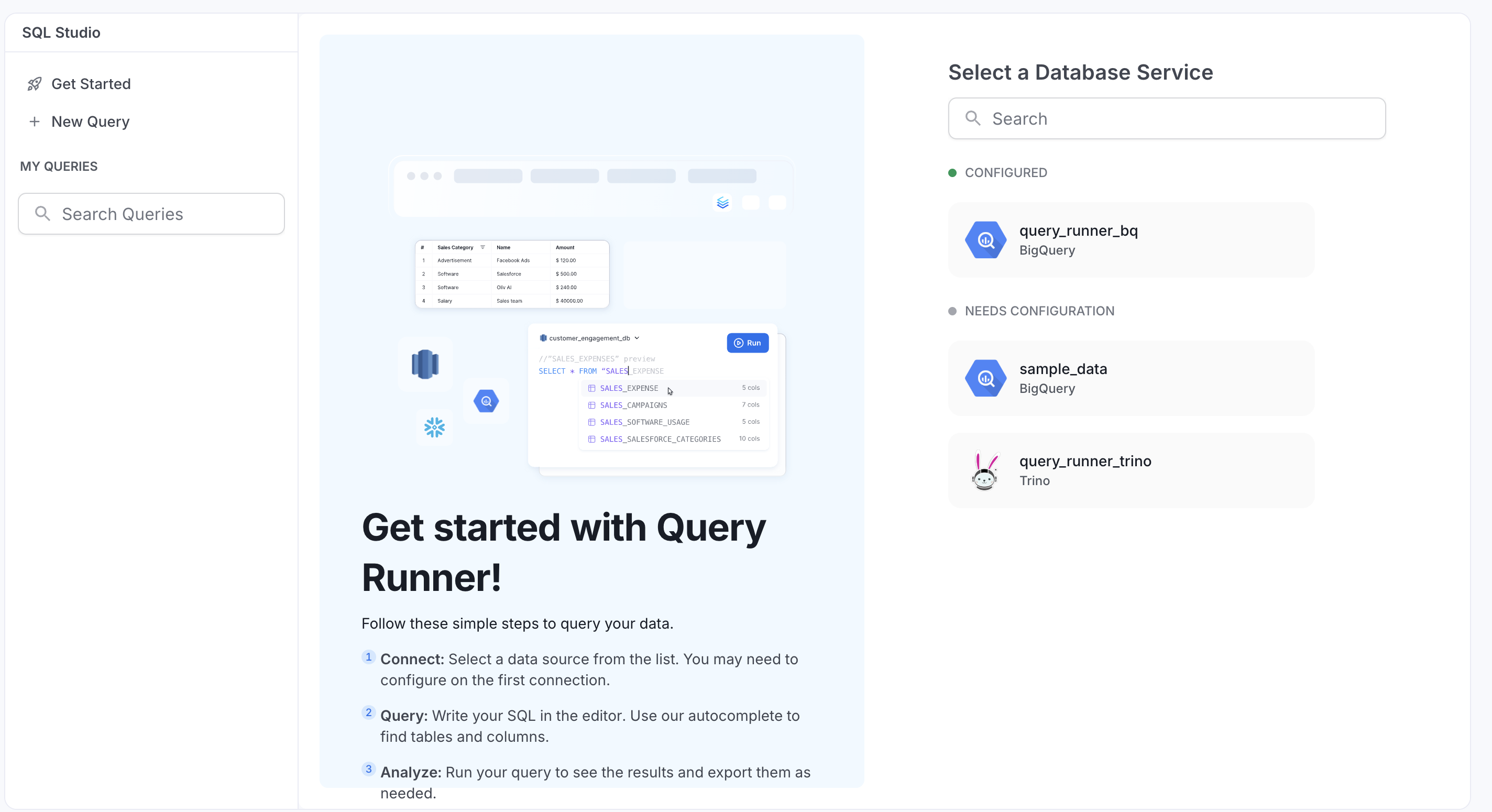
SQL Studio landing page showing available database services
- Services are grouped into:
- Configured: Services you've already connected to (ready to use)
- Needs Configuration: Services that require authentication
Understanding Connection Status
Your connection to a service can be in one of these states:
| Status | Indicator | Meaning | Action Required |
|---|---|---|---|
| Not Connected | ⚪ Gray | No authentication attempted | Click service card to authenticate |
| Pending | 🟡 Yellow | Authentication in progress, testing connection | Wait a few seconds for test to complete |
| Connected | 🟢 Green | Connection active, ready to query | None - you can execute queries |
You can view your connection status in the SQL Studio interface:
- Sidebar: Next to each service name
- Toolbar: At the top of the SQL editor when a service is selected
Authentication Methods
The authentication method available to you is determined by your administrator. This guide is organized by authentication type.
Collate SSO Authentication
Used when: Your organization uses Google OIDC for Collate login and has configured Collate SSO for the database service.
SSO Support: As of now, Collate SSO flow is only supported for Google OIDC (OpenID Connect).
How Collate SSO Works
Collate SSO leverages your existing Google OIDC SSO configuration in Collate to authenticate with database services. When you log into Collate using Google SSO, SQL Studio reuses those same OAuth credentials to connect to services like BigQuery.
Key Benefits:
- No additional login required beyond your Collate Google SSO
- Seamless one-click authorization
- OAuth credentials automatically managed by Collate
Connecting with Collate SSO
Step 1: Access SQL Studio
- Click SQL Studio from the main navigation menu
- You'll see a landing page with available services
- Find the service you want to connect to (e.g.,
my-bigquery)
Step 2: Select Service
- Click on the service card
- A connection dialog appears
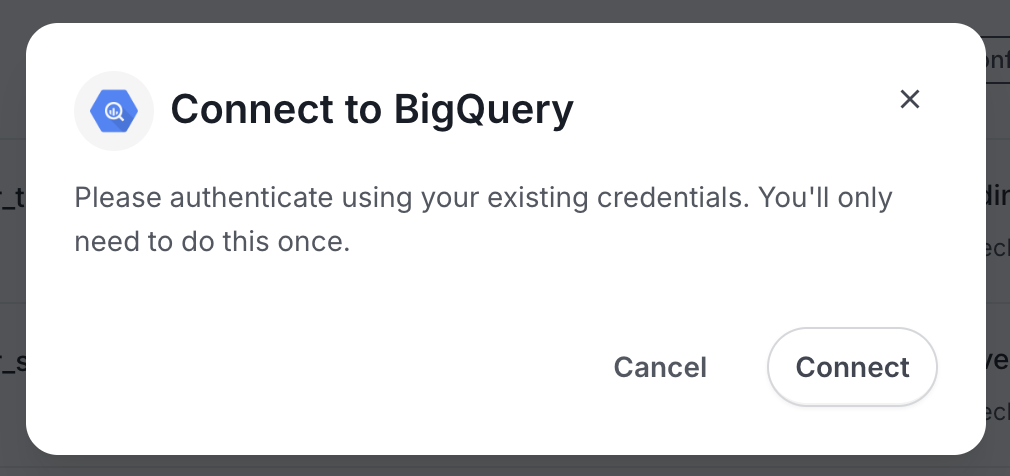
Connection dialog for SSO/OAuth authentication
- Click Connect to proceed
- A popup window opens for Google OAuth authorization
- You may already be signed in with your Google Workspace account
Step 3: Grant Permissions
- Review the permissions requested:
- Access to the database service (e.g., BigQuery)
- Your email and profile information
- Click Allow to grant permissions
- The popup closes automatically
Step 4: Connection Established
- You're redirected back to SQL Studio
- Connection status changes to Pending 🟡 (testing connection)
- SQL Studio runs a test query to verify access
- After a few seconds, status changes to Connected 🟢
- A new query tab opens automatically
Step 5: Start Querying
- The SQL Editor is now active
- You can write and execute queries
- Use the Database Explorer in the sidebar to browse tables
What Happens Behind the Scenes:
- OAuth token obtained from Google using your SSO session
- Token stored securely (encrypted) in Collate
- Project ID and service info pulled from service connection
- Connection tested automatically with
SELECT 1query
Troubleshooting Collate SSO
Connection Fails After Clicking Connect
Possible Causes:
- SSO session expired
- Insufficient permissions in the database service
- Permissions not granted in the popup
Solutions:
- Log out of Collate and log back in to refresh SSO session
- Verify you have permissions in the database service (e.g., BigQuery
bigquery.jobs.create) - Ensure you clicked "Allow" in the permissions popup
- Contact your administrator to verify Google OIDC SSO configuration
OAuth Authentication
Used when: Your organization has configured OAuth authentication with the database provider (Google, Snowflake, Azure AD), or uses a different SSO provider or email & password for Collate login.
How OAuth Works
OAuth requires you to authenticate directly with the database service provider (Google for BigQuery, Snowflake, Azure AD for Trino). You'll be redirected to the provider's authentication page, grant permissions, and then SQL Studio securely stores your OAuth tokens for query execution.
Key Benefits:
- Industry-standard OAuth 2.0 security
- Direct authentication with database provider
- Works with any OAuth provider configured by your administrator
Connecting with OAuth
Step 1: Access SQL Studio
- Click SQL Studio from the main navigation menu
- You'll see a landing page with available services
- Find the service you want to connect to
Step 2: Select Service
- Click on the service card (e.g., BigQuery, Snowflake, Trino)
- A connection dialog appears
Connection dialog for OAuth authentication
- Click Connect to proceed
- You are redirected to the OAuth provider's authentication page:
- BigQuery: Google authentication page
- Snowflake: Snowflake authentication page (e.g.,
myorg.snowflakecomputing.com/oauth/authorize) - Trino: Azure AD or configured OAuth provider
Step 3: Authenticate with Provider
- Sign in with your credentials:
- BigQuery: Google email and password
- Snowflake: Snowflake username and password
- Trino: Azure AD or organizational credentials
- Complete any multi-factor authentication if required
- You may be asked to select an account or role (follow the prompts)
Step 4: Grant Permissions
- Review the permissions requested:
- BigQuery: "Allow access to BigQuery API"
- Snowflake: "Allow access to Snowflake resources"
- Trino: "Allow access to Trino/Starburst cluster"
- Click Allow, Accept, or Authorize (wording varies by provider)
Step 5: Connection Established
- After successful authentication, access token exchange happens automatically
- You're redirected back to SQL Studio
- OAuth tokens are securely stored (encrypted)
- Connection status changes to Pending 🟡
- SQL Studio runs a test query to verify access (
SELECT 1) - After a few seconds, status changes to Connected 🟢
- A new query tab opens automatically
Step 6: Start Querying
- The SQL Editor is now active
- You can write and execute queries
- Use the Database Explorer to browse databases and tables
What Happens Behind the Scenes:
- OAuth access token obtained from provider
- Token stored securely (encrypted) in Collate
- Database connection parameters pulled from service configuration
- Connection tested automatically
Troubleshooting External OAuth
"Redirect URI Mismatch" Error
Problem: Error message about redirect URI mismatch during OAuth flow
Solutions:
- Contact your administrator - OAuth app configuration needs correction
- Verify you're using the correct Collate URL (e.g.,
https://collate.example.com, nothttp://localhost)
Authentication Successful But Connection Fails
Problem: OAuth completes but test connection fails
Solutions:
- Verify you have permissions in the database service
- Check network connectivity to the database service
- Contact your administrator to review service configuration
Redirect Issues
Problem: Not redirected back to SQL Studio after authentication
Solutions:
- Check browser settings allow redirects
- Verify the OAuth redirect URL is correctly configured by your administrator
- Try a different browser (Chrome, Firefox, Edge)
Basic Authentication
Used when: Your organization requires direct credential entry, typically for service accounts or when OAuth is not available.
How Basic Authentication Works
Basic Authentication requires you to manually enter credentials such as username/password, service account keys, or private keys. Credentials are encrypted and stored securely.
Key Benefits:
- Works with any credential type
- No dependency on OAuth providers
- Suitable for service accounts
BigQuery Basic Authentication
Credentials Required
- GCP Service Account JSON file, containing:
- Private Key ID
- Private Key (PEM format)
- Client Email
- Client ID
Where to Get Credentials
- Go to Google Cloud Console
- Navigate to IAM & Admin → Service Accounts
- Create or select a service account
- Grant BigQuery permissions:
BigQuery Data ViewerorBigQuery Userrole- Ensure
bigquery.jobs.createpermission
- Go to Keys tab → Add Key → Create new key → JSON
- Download the JSON file and store securely (e.g., 1Password)
Connecting with BigQuery Basic Auth
Step 1: Select Service
- In SQL Studio, select the BigQuery service from the dropdown
- Click Configure Connection
Step 2: Enter Credentials
You have two options:
Option A: Upload JSON File
- Click Upload Service Account JSON
- Select your downloaded
.jsonfile - All fields are automatically populated
Option B: Manual Entry
- Open your service account JSON file in a text editor
- Enter each field:
- Private Key ID: Copy from
private_key_idfield - Private Key: Copy entire PEM key from
private_keyfield (including-----BEGIN PRIVATE KEY-----and-----END PRIVATE KEY-----) - Client Email: Copy from
client_emailfield - Client ID: Copy from
client_idfield
- Private Key ID: Copy from
Step 3: (Optional) Configure Overrides
If your administrator enabled user-configurable fields:
- Dataset: Enter default BigQuery dataset (e.g.,
analytics,marketing)
Step 4: Test Connection
- Click Test Connection
- SQL Studio validates your credentials by:
- Connecting to BigQuery
- Executing a test query (
SELECT 1)
- Connection status changes to Pending 🟡
- Wait for test to complete
Step 5: Save Configuration
- If test succeeds, click Save
- Your credentials are encrypted and stored
- Connection status changes to Connected 🟢
- You can now execute queries
Snowflake Basic Authentication
Credentials Required
Choose one authentication method:
Option A: Username + Password
- Snowflake username
- Snowflake password
Option B: Username + Private Key + Passphrase
- Snowflake username
- RSA private key (PEM format)
- Private key passphrase (required)
Where to Get Credentials
For Username/Password:
- Provided by your Snowflake administrator
- You can reset your password in Snowflake web UI
For Key Pair Authentication:
- Generate RSA key pair with passphrase:
The private key must be encrypted with a passphrase. When you run the command above, you'll be prompted to enter a passphrase. Make sure to remember it as you'll need it when connecting to Snowflake.
- Upload public key to Snowflake:
- Store private key securely (
rsa_key.p8)
Connecting with Snowflake Basic Auth
Step 1: Select Service
- In SQL Studio, select the Snowflake service from the dropdown
- Click Configure Connection
Step 2: Enter Credentials
Username: Enter your Snowflake username (required)
Choose Authentication Method:
For Password-based auth:
- Enter Password
For Key-pair auth:
- Paste your Private Key (entire PEM key including headers)
- Enter Passphrase (required)
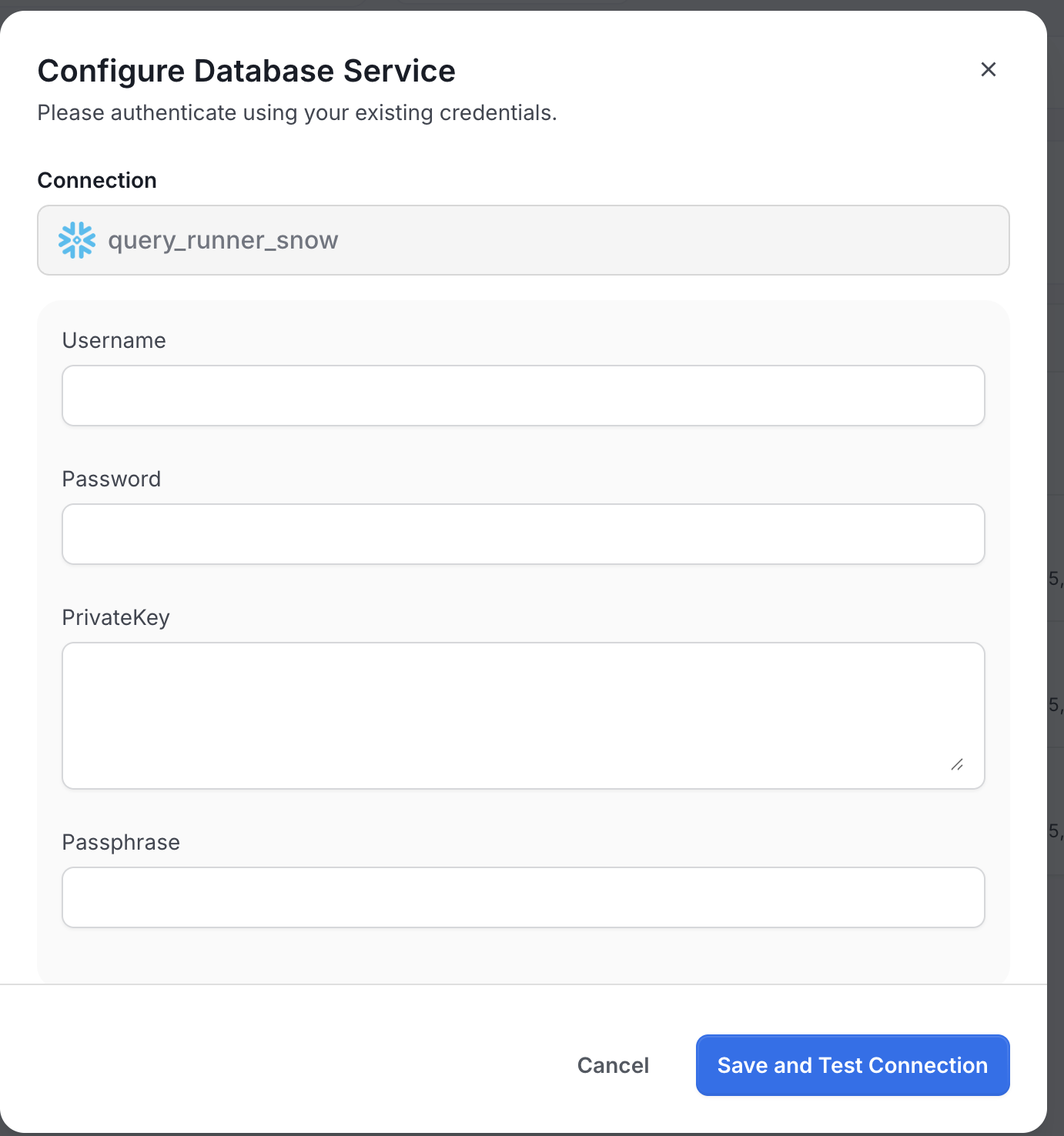
Configure Database Service with username, password, private key, and passphrase
Step 3: (Optional) Configure Overrides
If your administrator enabled user-configurable fields:
- Warehouse: Compute warehouse (e.g.,
COMPUTE_WH,LARGE_WH) - Database: Default database (e.g.,
ANALYTICS,PROD) - Schema: Default schema (e.g.,
PUBLIC,ANALYTICS) - Role: Snowflake role for access control (e.g.,
ANALYST,ENGINEER)
Leave these blank to use defaults from the service connection configuration.
Step 4: Test Connection
- Click Test Connection
- SQL Studio validates your credentials
- Connection status changes to Pending 🟡
- Wait for test to complete
Step 5: Save Configuration
- If test succeeds, click Save
- Your credentials are encrypted and stored
- Connection status changes to Connected 🟢
Troubleshooting Basic Authentication
Test Connection Fails
Problem: "Invalid credentials" or "Authentication failed"
Solutions:
For BigQuery:
- Verify service account has BigQuery permissions (
bigquery.jobs.create) - Check that JSON file is complete and not corrupted
- Ensure Project ID in service connection matches your GCP project
For Snowflake:
- Verify username and password are correct
- Check that your account is not locked
- For key-pair: Ensure public key is uploaded to Snowflake
- For key-pair: Verify private key format (should be PKCS#8 format)
- Check that account, warehouse, database, schema exist
"Permission Denied" Errors
Problem: Test connection succeeds but queries fail with permission errors
Solutions:
For BigQuery:
- Grant service account appropriate BigQuery dataset permissions
- Verify service account has
bigquery.jobs.createpermission
For Snowflake:
- Check role has
USAGEpermission on warehouse - Verify role has
SELECTpermission on databases/schemas - Run
SHOW GRANTS TO ROLE <your_role>;in Snowflake to verify permissions
Private Key Format Issues (Snowflake)
Problem: "Invalid private key format" error
Solutions:
- Ensure key is in PKCS#8 format (not PKCS#1)
- Key should start with
-----BEGIN PRIVATE KEY-----(not-----BEGIN RSA PRIVATE KEY-----) - Convert if needed:
Managing Connections
Viewing Your Connections
To see all services you've connected to:
- In SQL Studio, look at the service list in the sidebar
- Each service shows:
- Service name and type (BigQuery, Snowflake, Trino)
- Connection status indicator (🟢 Connected, ⚪ Not Connected)
- Last connected timestamp (hover over status)
You can also view connection details by clicking the service and checking the toolbar.
Updating Credentials (Basic Auth Only)
If your password or credentials change:
- Click on the service in SQL Studio
- If disconnected, click to authenticate again
- Enter your new credentials in the modal form
- Click Test Connection to verify
- Click Save to update
Your saved queries remain intact when you update credentials.
Reconnecting (All Auth Types)
If your connection is lost or you need to reconnect:
For OAuth (Collate SSO or OAuth):
- Click on the service card
- OAuth flow initiates automatically
- You may be re-authenticated automatically if your session is still valid
- If not, sign in again and grant permissions
For Basic Auth:
- Click on the service card
- Modal form appears
- Re-enter your credentials
- Click Test Connection
- Click Save
Disconnecting from a Service
To remove your connection and delete stored credentials:
- In SQL Studio sidebar, find the service
- Right-click on the service name (or click the ⋮ menu icon)
- Select Disconnect or Delete Connection
- Confirm the action
What happens when you disconnect:
- ✅ Your saved queries are preserved and remain accessible
- ❌ Your authentication credentials are permanently deleted
- ❌ You'll need to re-authenticate to connect again
Disconnecting removes all stored credentials (OAuth tokens or Basic Auth credentials). You'll need to go through the full authentication process again to reconnect.
Security Best Practices
Credential Storage
- Store credentials in a secure password manager (e.g., 1Password, LastPass)
- Never share credentials via email or chat
- Use strong passwords for password-based authentication
- Rotate service account keys regularly
OAuth Token Management
- OAuth tokens are stored encrypted in Collate
- Tokens are securely stored and used for query execution
- If you suspect token compromise, click "Disconnect" and reconnect to generate new tokens
Least Privilege Access
- Use service accounts with minimal required permissions
- For Snowflake, use specific roles (not
ACCOUNTADMIN) - For BigQuery, grant dataset-level permissions (not project-wide)
Tips for Successful Connections
For OAuth (Collate SSO & OAuth)
✅ Do:
- Keep your SSO session active
- Allow popups for OAuth authorization (if popup appears)
- Re-authenticate promptly when connection is lost
❌ Don't:
- Block popup windows or redirects (OAuth won't work)
- Clear browser cookies frequently (may break OAuth session)
- Share your OAuth tokens or sessions with others
For Basic Authentication
✅ Do:
- Use strong, unique passwords
- Store credentials securely (use a password manager like 1Password, LastPass)
- Update credentials in SQL Studio if they change in the database
- Use service accounts where possible (BigQuery)
❌ Don't:
- Share your credentials with others
- Use your personal credentials for shared/team queries
- Leave credentials in plain text files or unencrypted storage
General Best Practices
- Test connection before important work: Ensure you're connected before writing complex queries
- Monitor connection status: Glance at the status indicator before running queries
- Reconnect if needed: Don't wait until query execution to discover connection issues
- Log out when done: Close SQL Studio tab when finished to secure your session
- Report issues promptly: If connection consistently fails, notify your administrator
Frequently Asked Questions
Q: Are my credentials stored securely?
A: Yes. All credentials (OAuth tokens and Basic Auth credentials) are encrypted before storage using industry-standard encryption.
Q: Can I use multiple services at once?
A: Yes! Connect to multiple services and switch between them using the service selector in SQL Studio.
Q: What happens if I disconnect?
A: Your saved queries remain intact. You can reconnect anytime to access them again. Only your authentication credentials are deleted.
Q: Can I share my connection with teammates?
A: No. Each user has their own personal connection with their own credentials/tokens. Connections cannot be shared for security reasons.
Q: What if my administrator disables SQL Studio?
A: The service will disappear from SQL Studio. Your saved queries are preserved and will be accessible if SQL Studio is re-enabled.
Q: How do I get help with connection issues?
A: Check the Troubleshooting sections above for your authentication method. If issues persist, contact your Collate administrator.
Next Steps
Now that you're connected, you're ready to execute queries:
- Learn Query Execution: Read the Query Execution guide to master SQL Studio
- Explore Database Explorer: Browse your databases, schemas, and tables in the sidebar
- Save Queries: Start building your library of reusable queries
Ready to run your first query? Head to Query Execution to learn how to write and execute SQL queries in SQL Studio.